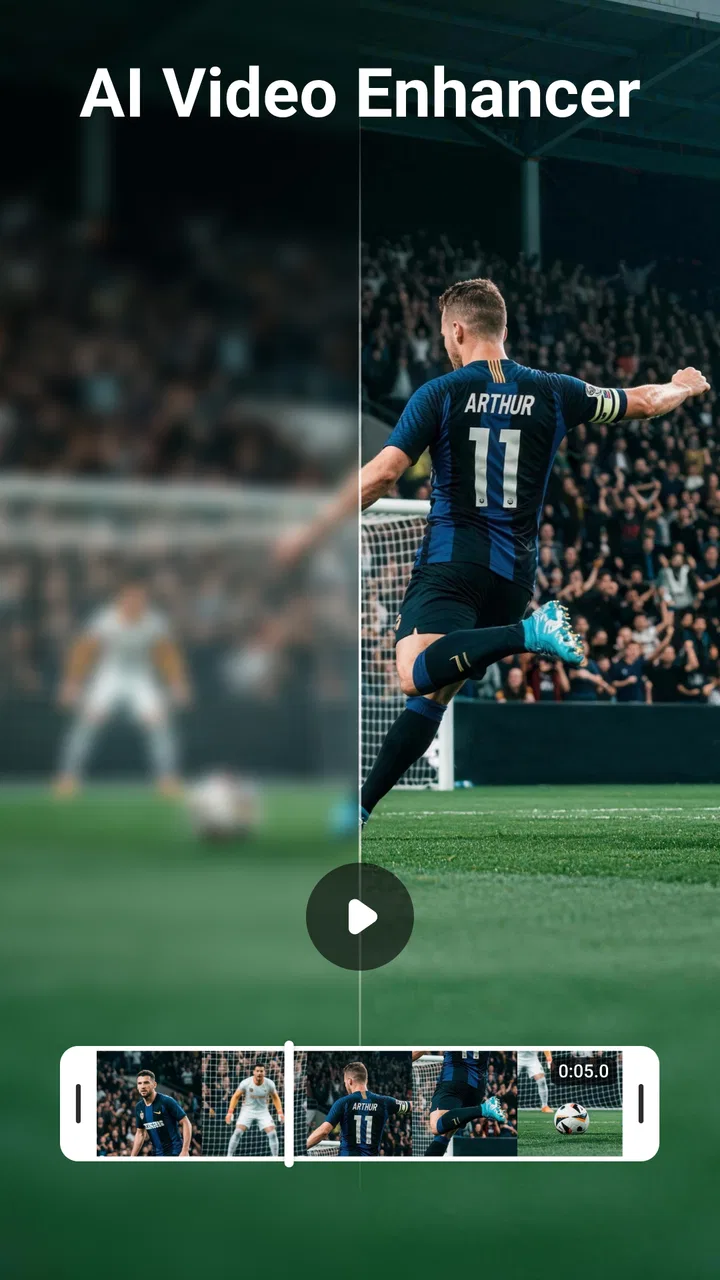
AI Video Enhancer & Editor
- 4.4
- Rating
- 10.00M
- Installs
- Free
- Price

 Analysis by App-foxy
I opened AI Video Enhancer - Utool expecting a fairly direct video-editing tool, and that is the right way to approach it. It is a free Android app in the video players and editors category, built around improving clips with artificial intelligence, applying filters and effects, and creating more polished social-ready videos. The store summary also points to HD and 4K enhancement and an AI video generator, so it aims at both fixing existing footage and helping users create something new.
My first impression is that Utool is most useful when you have a clip that is almost good enough but needs help. A dim family recording, a soft phone video, a short travel moment, or a vertical clip that feels flat can all benefit from a quick editing pass. I would not treat it as a full replacement for a desktop editor, but I can see why it has attracted a large audience: it keeps the idea of “make this video look better” much less intimidating.
The app is free to install, with optional in-app purchases ranging from under a dollar to around sixty dollars per item. That makes it easy to test before spending anything, although I recommend paying attention to any upgrade prompts while exploring. Utool is marked for Teen users, and it requires Android 7 or later. Its current version is 1.181.73, while the app was released in September 2023.
You May Also Like

 Blood Strike: 2.5 Anniversary
Blood Strike’s Loadouts Turn Every Drop Into a Tactical Gamble
A close look at Blood Strike’s custom loadouts: how fast access to signature weapons reshapes its battle royale rhythm, rewards preparation, and narrows the gap between fights.

 Pandora - Music & Podcasts
Pandora’s Music Is Easy to Start, but Harder to Recover
Pandora’s strength is its low-effort path from a seed to a station. Its weak spot is how much confidence it asks you to place in connection, setup, and quiet recovery.

 8 Ball Pool
 Is Built on Rivalries, Rematches, and Routine
A close look at the rivalries, rematches, shared routines, and unanswered safety questions that turn a quick pool match into a persistent mobile community.

 Samsung Music
’s Quiet Strength Is Playing What You Already Own
Its reach comes less from spectacle than from dependable access to a personal library. That simplicity is both the app’s strongest retention engine and its ceiling.

 AccuWeather: Weather Radar
AccuWeather Review: A Quick, Clear Forecast for Everyday Decisions
For everyday plans, the best forecast is the one you can understand quickly. AccuWeather makes rain timing, radar, and local conditions easy to act on, with a few trade-offs.

 Hill Climb Racing
Why Hill Climb Racing Still Turns Crashes Into One More Run
A tiny car, a bumpy hill and one more upgrade: Hill Climb Racing keeps resurfacing because its simple chaos makes every near-miss feel personal.
More From Our News Desk



What to expect before you begin editing
Utool is not just a basic trimming utility. Its identity comes from combining enhancement, creative effects, filters, slideshow-style editing, and AI-assisted tools in one mobile workspace. That broad approach is convenient, but it also means the first screen may feel busier than a simple cutter. You are not opening a single-purpose “choose a clip and export” tool; you are entering a collection of ways to transform video.
The developer name, Music Video Editor with Effects & Slideshow, gives a useful clue about the intended audience. This is especially suited to people making short, visual pieces for personal sharing rather than editors managing long, complex productions. I would consider it for birthday montages, quick reels, before-and-after enhancement, photo-and-video slideshows, and clips that need a stronger mood.
Its public reception is encouraging: Utool holds an average rating of 4.4 from roughly sixty-nine thousand ratings, with more than ten million installs. Those figures do not mean every project will look perfect, but they do suggest that the basic workflow is approachable for many Android users. I found that the app makes more sense when I begin with one clear goal instead of opening every creative option at once.
For a first attempt, choose one short clip and decide what success means. If the image is soft, start with enhancement. If the footage is technically acceptable but boring, try a filter or effect. If you have several photos and brief videos, use the slideshow direction. This simple decision prevents a common beginner mistake: applying several dramatic tools before understanding what each one is changing.
There is also an important distinction between improving a source file and disguising its weaknesses. AI enhancement can make a clip feel cleaner or more defined, but it cannot recreate detail that was never captured. Very dark footage, severe motion blur, or heavily compressed messaging-app video may improve only modestly. I prefer to use Utool as a helpful finishing tool, not as a promise that every damaged recording can become professional footage.
Who will get the most from it
I think Utool is a strong fit for first-time editors, casual creators, and anyone who wants a fast result without learning a timeline-heavy desktop program. It is also appealing if your editing needs change from day to day. One afternoon you may want to enhance a clip; the next, you may want a stylized music video or a slideshow. Having those directions together is more convenient than installing several narrowly focused apps.
It is less suitable for a filmmaker who needs precise control over every cut, audio track, color adjustment, title position, and export decision. It is also not my first choice for a long project with many scenes, because a mobile AI editor is generally better at quick transformations than detailed project management. If exact frame-level control matters more than speed, a traditional editor will probably feel calmer and more predictable.
Setting up the first project without getting lost
After installation, I recommend starting with a clip already saved on the phone. This removes one source of confusion and lets you concentrate on Utool itself. Pick something short with a visible subject, reasonable lighting, and a clear reason for editing. A person walking outdoors, a pet playing, or a bright travel scene is better for learning than a nearly black night recording.
When the app presents several creative routes, resist the temptation to test all of them on your best footage. Use a disposable copy or a clip you can easily recreate. This is a practical habit with AI editing tools because enhancement, effects, and generation can each produce a very different visual character. Comparing them on the same source helps you understand the difference without risking the version you actually want to keep.
Before applying anything, watch the original from beginning to end. I often notice that a clip feels poor because of one section rather than the whole recording. Perhaps the opening is shaky, the subject moves out of frame, or the lighting changes halfway through. That observation matters: an all-over effect may improve the weak part while making the good part look unnatural. If Utool offers a way to work on a selected clip or segment, use that narrower approach whenever possible.
A useful beginner workflow is to create a clean baseline first. Import the video, preview it, and make only the most necessary adjustment. Then compare the result with the original before adding a filter. This gives you a reference point. Without that pause, it is easy to mistake a stronger color cast or sharper edges for genuine improvement.
Keep storage and battery in mind during longer experiments. AI processing and high-resolution video work can be demanding on a phone, especially when you are trying several versions. I would avoid starting a large batch while the device is nearly full or during a moment when I need the phone for something else. Short tests are not only quicker; they make it easier to identify which change actually helped.
The free entry point is one of Utool’s practical advantages. You can explore the basic experience before deciding whether optional purchases are worthwhile. Still, I would treat every paid prompt as a separate decision rather than assuming that unlocking more tools will automatically improve your results. A better effect cannot rescue a weak source clip or an unclear editing idea.
Your first meaningful success
For a reassuring first result, I would choose a short clip with mild softness and good lighting. Open the enhancement-focused path, select the video, and preview the processed version. Look closely at the subject’s face, hair, text, and background edges. Those areas reveal whether the result is genuinely clearer or merely more artificial.
My preferred test is subtle. If the enhanced version looks better at normal viewing size but still resembles the original, it is probably doing useful work. If fine details become crunchy, skin looks waxy, or moving edges develop strange outlines, the setting is too aggressive for that clip. The best result is often the one that makes viewers notice the moment rather than the processing.
After that, try one filter or effect, not several. Filters are most useful when they support the subject. A warm treatment can suit a sunset or family memory, while a more energetic effect may fit a music-focused montage. Applying a dramatic style to every clip can make a slideshow feel inconsistent, so I would save stronger effects for transitions or a short highlight rather than using them across the entire project.
One concrete workflow I found valuable is separating correction from personality. First improve the clip enough that it is watchable. Then decide whether it needs a creative identity. This two-stage habit prevents the common problem of using a flashy effect to hide a technical issue. It also gives you a clean version to return to if the creative experiment goes too far.
When the result feels right, preview the complete sequence before saving it. Watch for abrupt changes in brightness, a filter that appears only on one section, or an ending that feels cut off. These details are easy to miss while editing individual pieces. A full preview is the point where a collection of acceptable clips becomes a coherent short video.
For sharing, I would keep the first export modest unless the original footage genuinely benefits from a higher-resolution output. Utool’s support for HD and 4K enhancement is attractive, but a larger output is not automatically a better one. If the source was recorded at low quality, pushing it to a larger size may produce a file that takes more space without adding meaningful detail. Use the highest practical option when the source and destination justify it, not simply because it is available.
Where beginners commonly become confused
The biggest source of confusion is the difference between an enhancer, an effect, and an AI-generated result. Enhancement works from your existing footage. An effect changes its visual style. Generation is a more creative direction, where the app helps produce something that may not look like a straightforward correction of the original. These tools can sit close together in the interface, but they solve different problems.
If you want a real recording to look cleaner, begin with enhancement. If you want a mood or visual treatment, use filters and effects after the basic correction. If you are exploring an idea rather than repairing a clip, the AI video generator may be the more interesting route. Mixing these goals at the start makes it difficult to tell whether the app improved your footage or simply replaced its character with a style.
Another point of friction is judging quality on a small phone preview. A processed clip may look impressive in a tiny window but reveal halos, smoothed faces, or unstable details when viewed larger. I recommend checking a few important frames at a comfortable size, particularly if the video contains faces, signs, captions, or patterned clothing. Those subjects can expose over-processing more quickly than a plain background.
Music-video and slideshow projects bring their own challenge: rhythm. A sequence can contain attractive images and still feel slow or chaotic if the changes do not match the music or the viewer’s attention. I would begin with fewer items and a simple visual theme. Add another photo or effect only when it improves the pacing. A shorter, consistent montage usually feels more finished than a crowded one.
It is also easy to assume that every attractive preview represents a universally useful preset. In practice, a filter that works on a bright outdoor scene may flatten an indoor clip or make skin tones uncomfortable. I judge each effect against the subject and lighting rather than choosing the most dramatic thumbnail. This is one of the places where Utool rewards a little restraint.
Paid features can create another hesitation for new users. Since the app is free with optional purchases, explore the free workflow first and identify the exact tool you need before considering an upgrade. If a purchase is presented, read what it unlocks and ask whether it solves your current project. I would not pay simply because a premium-looking option appears next to a free one.
A realistic everyday project
Imagine recording a child’s school performance from the back of a room. The video is meaningful, but the subject is small, the lighting is uneven, and the camera microphone captured distracting room sound. Utool may help with the visual side by making the image feel cleaner and adding a gentle treatment, but I would keep expectations realistic. Enhancement cannot reliably restore every distant detail, and an effect should not make the important moment harder to see.
My workflow would be to duplicate the original, test a short section, and inspect the performer’s face and clothing edges. If the result remains natural, I would process the full clip. I would avoid a heavy filter and use the slideshow or music-video tools only for a short introduction or closing montage made from related photos. That gives the project a polished frame without overwhelming the actual performance.
For a weekend trip, I would take the opposite approach. The footage may already be clear, so the main opportunity is consistency. I would group clips by location or activity, apply a restrained visual treatment, and preview the order before adding extra effects. The non-obvious benefit of this workflow is that Utool becomes a consistency tool rather than merely a repair tool: the same visual direction can make footage from different moments feel like one story.
For social clips, the trade-off is speed versus control. Utool can help you reach a presentable result quickly, especially when you want enhancement and creative styling in one place. But if your content depends on exact captions, carefully timed sound design, or repeated brand layouts, a more specialized editor may save time in the long run. The faster app is not always the faster workflow once precision becomes important.
Taking the next step with more deliberate editing
Once the first project works, the best next step is not adding every effect. It is building a repeatable process. I would keep the original clip, a lightly enhanced version, and a final styled version separate. This makes it easier to change direction later and prevents an early experiment from becoming the only copy of a valuable memory.
Try comparing two versions with one variable changed. For example, keep the same enhancement and test two filters, or keep the same filter and change the enhancement strength. This simple comparison teaches more than randomly tapping through presets. It also helps you develop a personal sense of when Utool is improving footage and when it is merely making it louder.
A second advanced habit is to edit for the final viewing situation. A video watched on a phone can tolerate different choices from one displayed on a larger screen. Fine sharpening, strong contrast, and small text may look acceptable in the editor but become tiring or messy elsewhere. Preview your work at the size your audience is likely to use, and favor clear subjects over exaggerated detail.
You should also decide when not to use the AI generator. It is appealing for experimentation, concept videos, and visual ideas that would be difficult to film. It is not necessarily the right choice when the value of a clip comes from its authenticity, such as a personal memory, a real event, or a product demonstration. In those cases, enhancement and restrained editing preserve trust better than a heavily transformed result.
Compared with a basic phone gallery editor, Utool offers a wider creative range and a more obvious focus on AI-assisted improvement. Compared with a conventional mobile editor, it is more inviting for quick visual changes but may feel less appropriate when you need a highly controlled, multi-layer production. Compared with desktop software, it wins on convenience and loses on depth. I would choose it when the goal is a polished result today, not when the project requires an elaborate editing system.
The app’s Teen content rating is worth remembering if the phone is shared with younger users or if you are choosing tools for a family device. The rating does not change the editing workflow, but it is part of deciding whether the app fits the intended audience. I would also keep the optional purchase range in mind when handing the device to someone else, particularly during unsupervised experimentation.
After using it, my recommendation is fairly specific: install Utool if you want a friendly way to improve short videos, experiment with effects, or assemble a music-led slideshow without committing to a complex editor. Start with one ordinary clip, make one controlled change, and judge the result at a realistic viewing size. That path gives you a meaningful success quickly and shows whether the app suits your style.
Utool is at its best when it turns a nearly finished clip into a shareable one without demanding expert knowledge. Its broad AI and creative toolkit is useful, but the strongest results come from choosing the right tool for the footage and resisting excessive processing. If you value speed, experimentation, and mobile convenience, I think it is worth trying. If you need meticulous timelines, advanced audio work, or absolute control over every frame, I would move to a more traditional editor instead.
FAQs for AI Video Enhancer & Editor
01What is AI Video Enhancer - Utool, and how does it work?
AI Video Enhancer - Utool is an application designed to improve the quality of your videos using artificial intelligence. It works by analyzing your video files and applying advanced algorithms to enhance resolution, reduce noise, and improve color accuracy. The app simplifies the enhancement process, enabling users to achieve professional-grade results with minimal effort.
02Is AI Video Enhancer - Utool compatible with all video formats?
AI Video Enhancer - Utool supports a wide range of popular video formats, ensuring broad compatibility. However, it's always wise to check if your specific video format is supported by the app. The developers regularly update the app to include additional formats, improving versatility and user experience.
03How user-friendly is AI Video Enhancer - Utool for beginners?
AI Video Enhancer - Utool is designed with user-friendliness in mind, making it suitable for beginners. The interface is intuitive, and the enhancement process is straightforward, with guided steps to assist users. Tutorials and customer support are also available to help new users become familiar with the app's features.
04Are there any limitations or drawbacks to using AI Video Enhancer - Utool?
While AI Video Enhancer - Utool offers impressive capabilities, it may require significant processing power, which could be a limitation for older devices. Additionally, some advanced features might be locked behind in-app purchases. Users should consider these factors before downloading to ensure their device can handle the app's demands.
05What are the system requirements for installing AI Video Enhancer - Utool?
To install AI Video Enhancer - Utool, your device must meet certain system requirements. Typically, it requires a device running on the latest versions of Android or iOS and a stable internet connection for downloading and updates. Adequate storage space is also necessary to handle enhanced video files. Make sure your device meets these requirements for optimal performance.
Pros
- Enhances video quality effectively.
- User-friendly interface.
- Supports multiple video formats.
- Fast processing speed.
- No watermark on outputs.
Cons
- Limited free version features.
- Occasional app crashes.
- Requires high-end device for best results.
- Large file size post-enhancement.
- Subscription-based premium features.

AI Video Enhancer & Editor
Gallery